Camera System
Go to Live Camera System Web Login
Security/DAC System
Go to Remotely activate siren/unlock doors Go to Security Systems View door unlock times
Book Room View Room Bookings Calendar
Want to add this page to tour phone's home screen?
iPhone
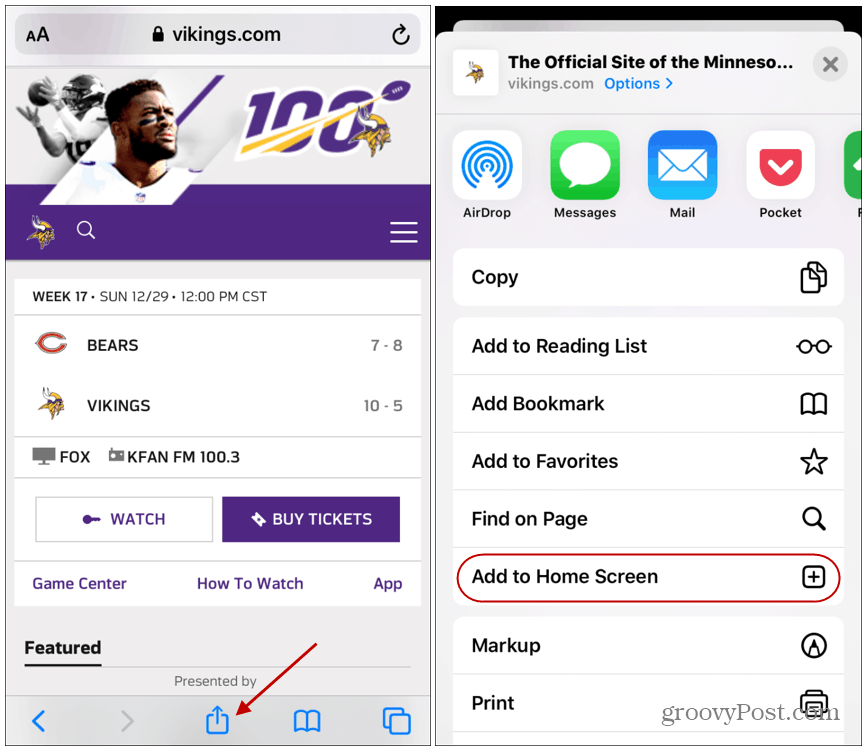
- Make sure you are viewing this page in the “Safari” app. This does not work from the “Chrome” app.
- Tap the icon featuring a right-pointing arrow coming out of a box along the top of the Safari window to open a drop-down menu.
- Tap “Add to Home Screen.” The Add to Home dialog box will appear, with the icon that will be used for this website on the left side of the dialog box.
- Enter the name for the shortcut using the on-screen keyboard and tap “Add.” Safari will close automatically and you will be taken to where the icon is located on your iPad’s desktop.
Android
- Make sure you are viewing this page in the “Chrome” app.
- Tap the menu icon (3 dots in upper right-hand corner) and tap Add to homescreen.
- You’ll be able to enter a name for the shortcut and then Chrome will add it to your home screen.
Need help?
Open a support ticket